Prediction
- Shoppers will interact with the cart more frequently.
- More users will continue from cart to checkout.
- Revenue per session will increase due to improved checkout progression.
 |
Results from other brands: |
Setting up the experience on Visually
BUILD TIME: ~1.5 min with AI
1. Set the Scope in Visually
Name the experience, add a short description, and set the rules:- Audience: All Visitors
- Pages: All Pages
- Devices: All Devices
- Trigger: Page Load
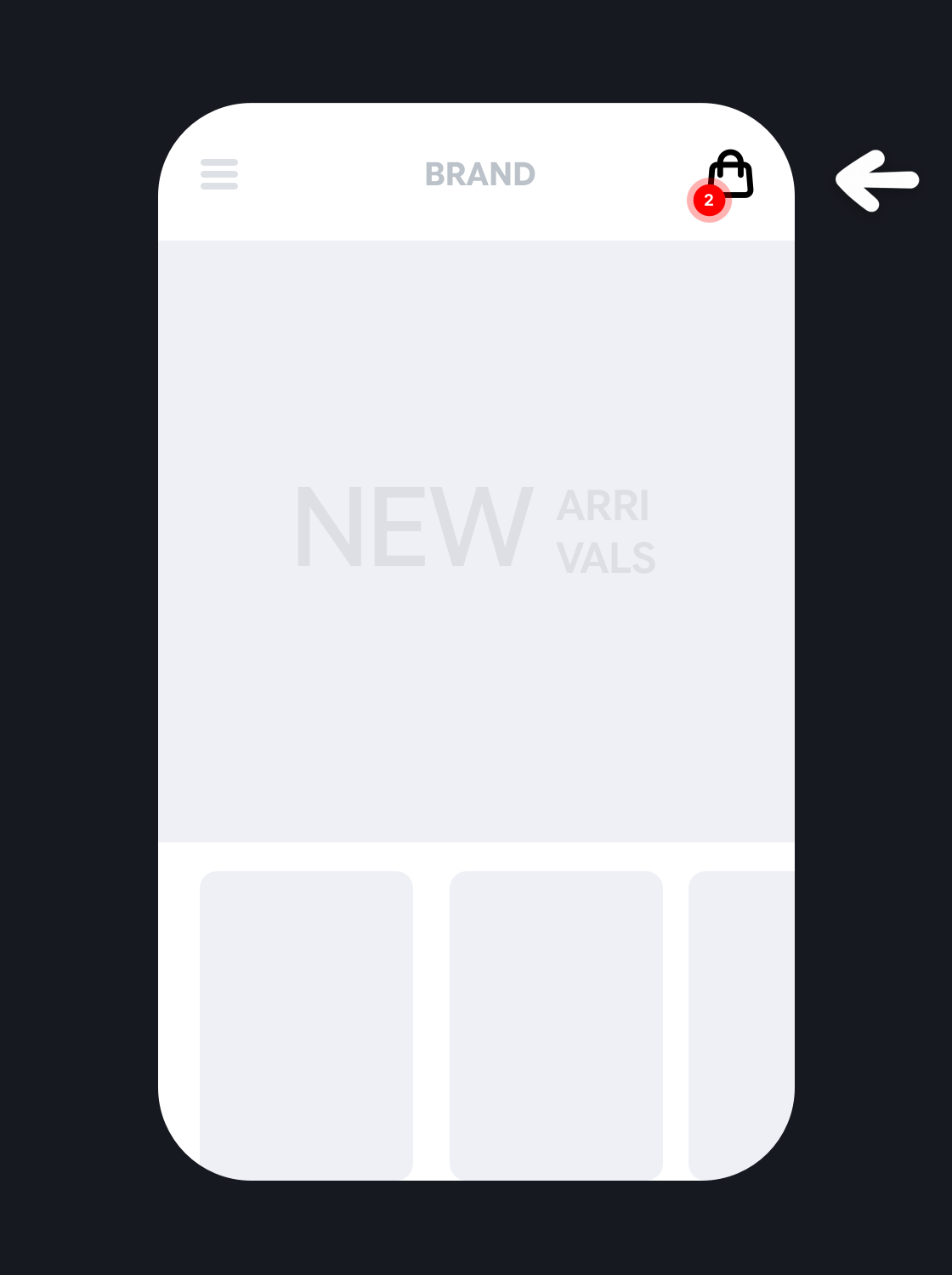
- In the left preview panel, hover over the cart icon until it turns pink, then click it and enter the prompt below.
- Feel free to customize the prompt according to your needs.
- Iterate in the chat until you're happy with the results. Once satisfied, click "Update" in the top-right corner.
|
Prompt: "Enlarge the cart icon and pulse the numerator when the cart has items"
|
3. Choose Where to Show the Change:
-
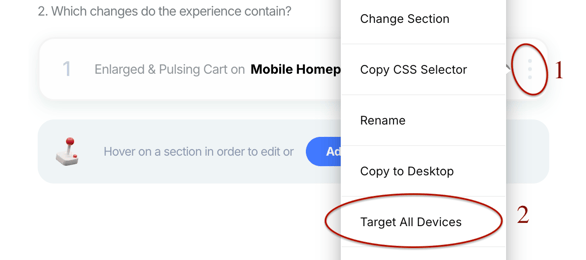
On the right panel, under section 2, click the three-dot menu of the experience and select "Target All Devices" to apply the change to both desktop and mobile.
4. Preview & QA:
Click on ״Preview״ and open the test in a separate tab on the device type you intend to test (mobile/desktop). We recommend using incognito mode.
Make sure the experience works as intended and click 'Next'.
5. Choose the Audience & Initiate the Test:
- In Section 1, select the audience that will see the experience.
For this test, keep it set to All Visitors. - In Section 3, select “Yes, sure”, set a variation name, and define your goals, including the primary goal.
- In Section 4, decide when you’d like to run the experience.
- Once everything is set, click "Publish" and wait for the results.


 Watch: Step by step walkthrough video
